
How to enable NVIDIA G-Sync Compatible Mode

This guide will demonstrate how to enable NVIDIA G-Sync on a Windows PC. G-Sync is a feature found in some gaming monitors. G-Sync creates a better gaming experience as it eliminates screen tearing and minimizes display stutter and input lag.
- Make sure the monitor supports NVIDIA's G-Sync technology - a list of supported monitors at the time of this article can be found on Nvidia's website.
- Make sure a DisplayPort cable is being used - G-Sync is only compatible with DisplayPort. It must be a standard DisplayPort cable using no adapters or conversions. HDMI, DVI and VGA are not supported.
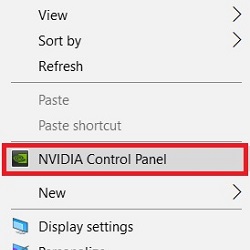
- Right click on the desktop background and select NVIDIA Control Panel from the list.
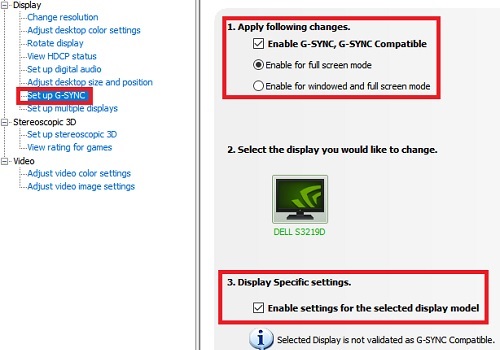
- Under the Display tab on the left side of the NVIDIA Control Panel, choose Set up G-Sync, followed by Enable G-Sync, G-Sync Compatible checkbox. Note: If the monitor has not been validated as G-Sync Compatible, select the box under Display Specific Settings to force G-Sync Compatible mode on. See the warning NOTE at the end of the article before proceeding.
- Under the Manage 3D Settings tab on the left side of the NVIDIA Control Panel, make sure Monitor Technology is set to G-SYNC.
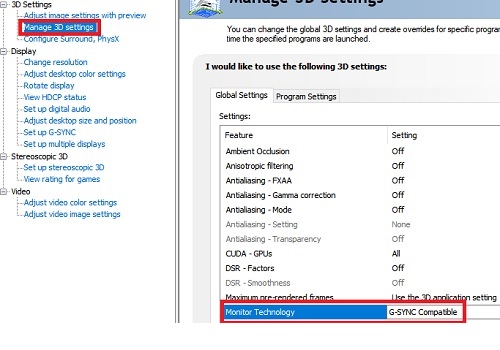
- G-Sync Compatible Mode is now enabled.