
How to Turn the AMD Ryzen AI Halo Into Your Local AI Server

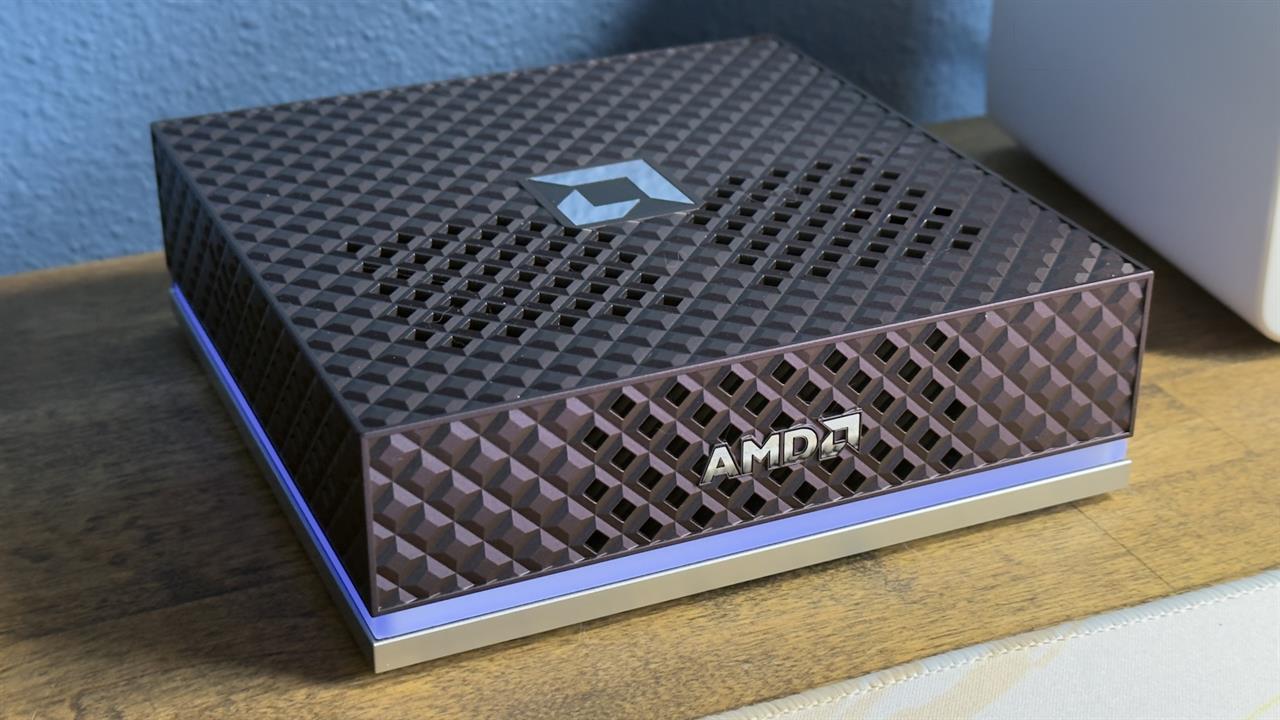
Photo: Matthew Smith
AMD's new Ryzen AI Halo is an AI mini-desktop with the company's Strix Halo silicon inside. That means it has a powerful Ryzen CPU, Radeon graphics, and 128GB of DDR5 unified memory, all in one box.
That makes Ryzen AI Halo the perfect on-ramp for people looking to dip seriously into local AI with a minimum of confusion. With that said, though, there are still some basics you're going to need to wrap your head around to get the most out of the hardware. This guide will help you understand some key concepts of local AI so you can run a variety of local AI workloads on your new hardware.
The first boot experience and Windows vs. Linux
Windows is arguably the Ryzen AI Halo's killer feature, as it sets the box apart from its competitors. For most people, this makes Ryzen AI Halo's first-boot experience more familiar. There's really nothing to it. Just turn it on, complete the usual Windows first-boot setup, and that's it.
Once in Windows you should see the AMD Ryzen AI Halo Developer Center. It's really just a download manager with a few basic settings available. However, you'll want to pay attention to the Sync Software button. Ryzen AI Halo ships with pre-installed AI software, and you'll want to click that button to bring it up to date with the latest version.
Ryzen AI Halo can also run Linux. You may want to install Linux if you want access to the widest range of AI software possible, or if you plan to run the Ryzen AI Halo as a headless server (a server without a monitor or keyboard attached). However, for this guide I'm going to assume you're sticking with Windows.
Managing the memory configuration
Memory management is key for any AI server, but it's particularly important for the Ryzen AI Halo.
Ryzen AI Halo has a unified memory architecture but it still addresses system and graphics memory as separate pools of memory within Windows. That means you need to manually assign the amount of system memory that can be used by the GPU.
The Ryzen AI Halo defaults to 64GB of dedicated graphics memory, but you can adjust it up to 96GB.
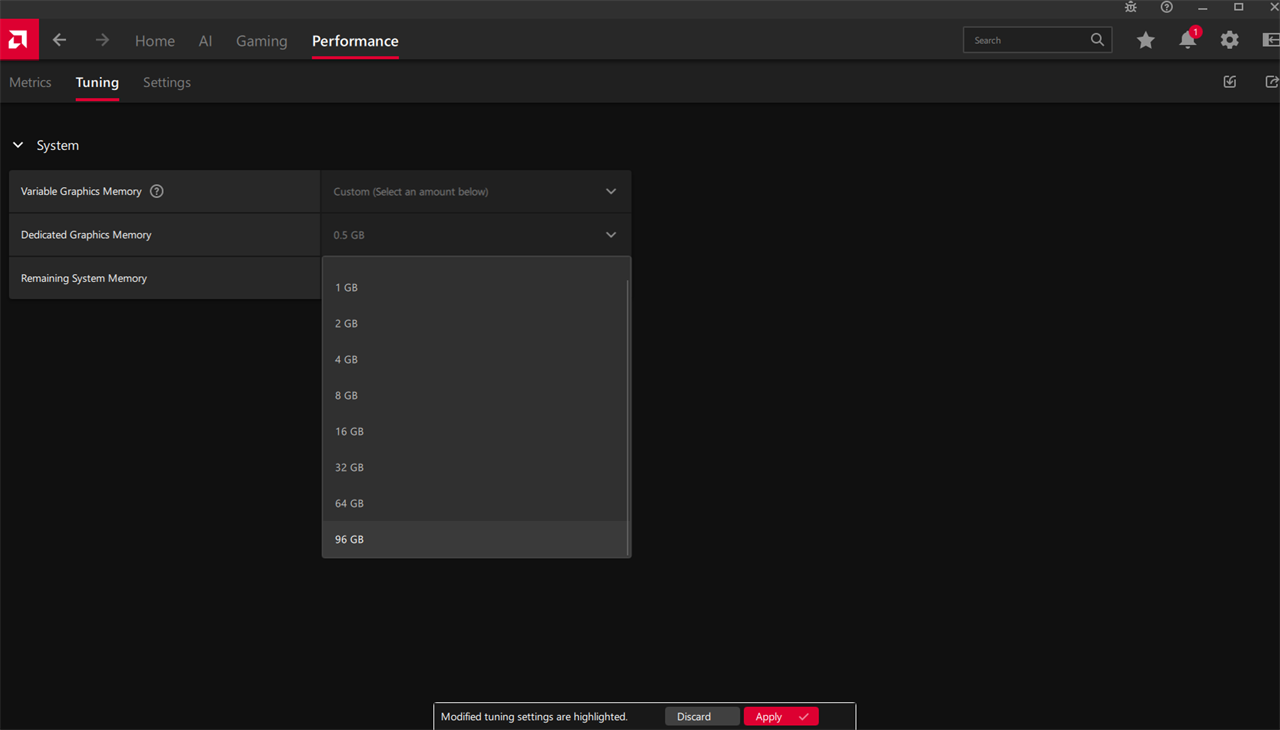
Photo: Matthew Smith
To do this in Windows, open AMD Software: Adrenalin Edition. Click Performance, then Tuning. You will see the dedicated graphics memory system setting listed under System. Click the Variable Graphics Memory drop-down menu and select Custom. Then click the Dedicated Graphics Memory drop-down menu and select 96GB. A reboot is required for the setting to take effect.
I recommend that most people make the switch from 64GB to 96GB of dedicated graphics memory—if AI is indeed your main use case. 32GB is still plenty of memory for Windows and the software you'll run.
Network basics for success
With your memory configured, it's time to think about networking. The goal here is to use your Ryzen AI Halo as a local AI server, so you'll be connecting other devices to it over your local network.
The hardware that you use for your local network isn't that important. Generative AI doesn't require a lot of bandwidth, so if your local network can handle web browsing, it should handle using the Ryzen AI Halo as a local AI server.
However, you'll need to track some basic network information that will frequently come up.
First, you need your local IP address. On Windows you can find it by opening Windows PowerShell and entering ipconfig. Look for your IPv4 address and write it down.
Note: Your local network address will sometimes change, particularly if a device is offline for a long period of time or if you reset your Wi-Fi router.
You'll also find Windows' Resource Monitor handy. Open Resource Monitor, then navigate to the Network tab. Expand the TCP Connections and Listening Ports fields.
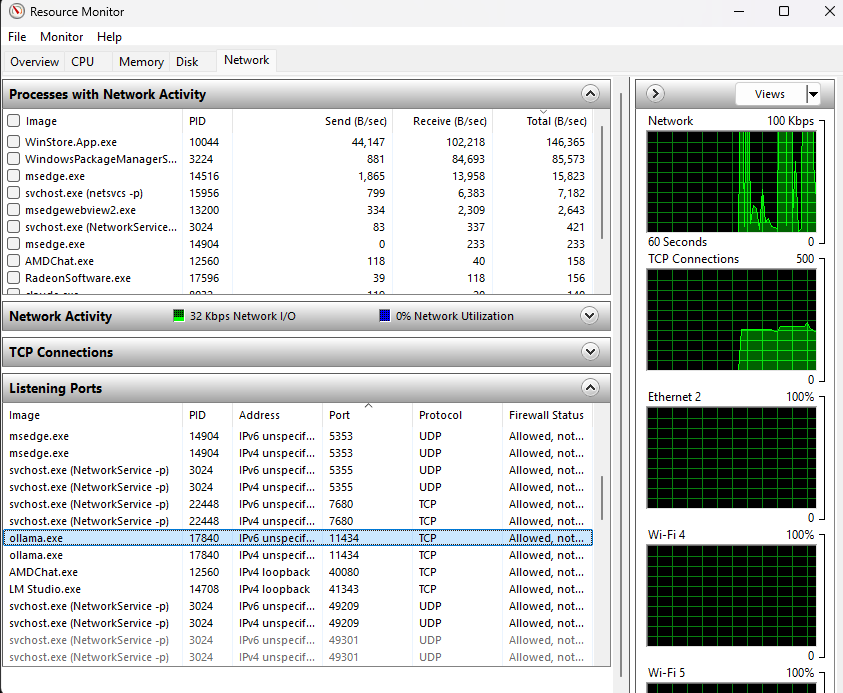
Photo: Matthew Smith
TCP Connections lists programs with an active connection. Listening Ports shows programs that are listening for connections and the port they're using.
Let's say you've installed a new tool from GitHub that's supposed to make locally hosted AI accessible on other local network devices, but you've forgotten what port was open. If the software has a listening port open you should be able to find it in this list.
Finally, you'll want to accept all of the many Windows Firewall permission prompts that you will see as you're following this guide. Otherwise, the firewall will block the required local network connections.
Getting started with API endpoints
With the network basics in order, let's move on to API endpoints.
An API endpoint exposes an Application Programming Interface (API) for other programs to use. In the context of an LLM, the API provides a standard way for client software to communicate with a model.
Let's explore this by setting up an LLM with Ollama and using an OpenAI-compatible API endpoint.
Note: Ollama is popular, and many popular AI tools will have an Ollama default that configures settings automatically. However, in this example we're going to use the OpenAI-compatible endpoint using manual settings. This will help you understand what's happening behind the scenes.
First, download Ollama for Windows and install it with default settings. Open Ollama, go to settings, and flip "Expose Ollama to the network" on. Finally, go to chat and start a chat with Google Gemma 4. This will download the model.

Photo: Matthew Smith
Now, let's verify that Ollama is running and our model is installed. Open Windows PowerShell and enter curl.exe http://localhost:11434. You should receive the response Ollama is running.
Next, type ollama list. You should see that the list includes the model gemma4:latest. This means Ollama can run the model on your local hardware.
Open a terminal app on another computer and enter the following command:
curl http://192.168.1.44:11434/v1/chat/completions \
-H "Content-Type: application/json" \
-d '{
"model": "gemma4:latest",
"messages": [{"role": "user", "content": "Hello"}]
}'
After a few seconds you should see a response appear. You'll probably hear a bit of extra coil whine from the Ryzen AI Halo and might hear the fans spin up, too.
That's it. You sent a prompt to an AI model on the Ryzen AI Halo via an OpenAI-compatible API endpoint.
For a more practical example, open Microsoft Visual Code on another computer and download the Cline extension.
Once it's installed, open the Settings and navigate to API Configuration. Under API Provider select OpenAI Compatible. The base URL is http://192.168.1.44:11434/v1. In the OpenAI-compatible API Key field enter a placeholder, such as ollama (there is no API key in this case, but you must enter something to avoid an error). Finally, enter gemma4:latest in the ModelID field. Click done to return to the Cline interface.
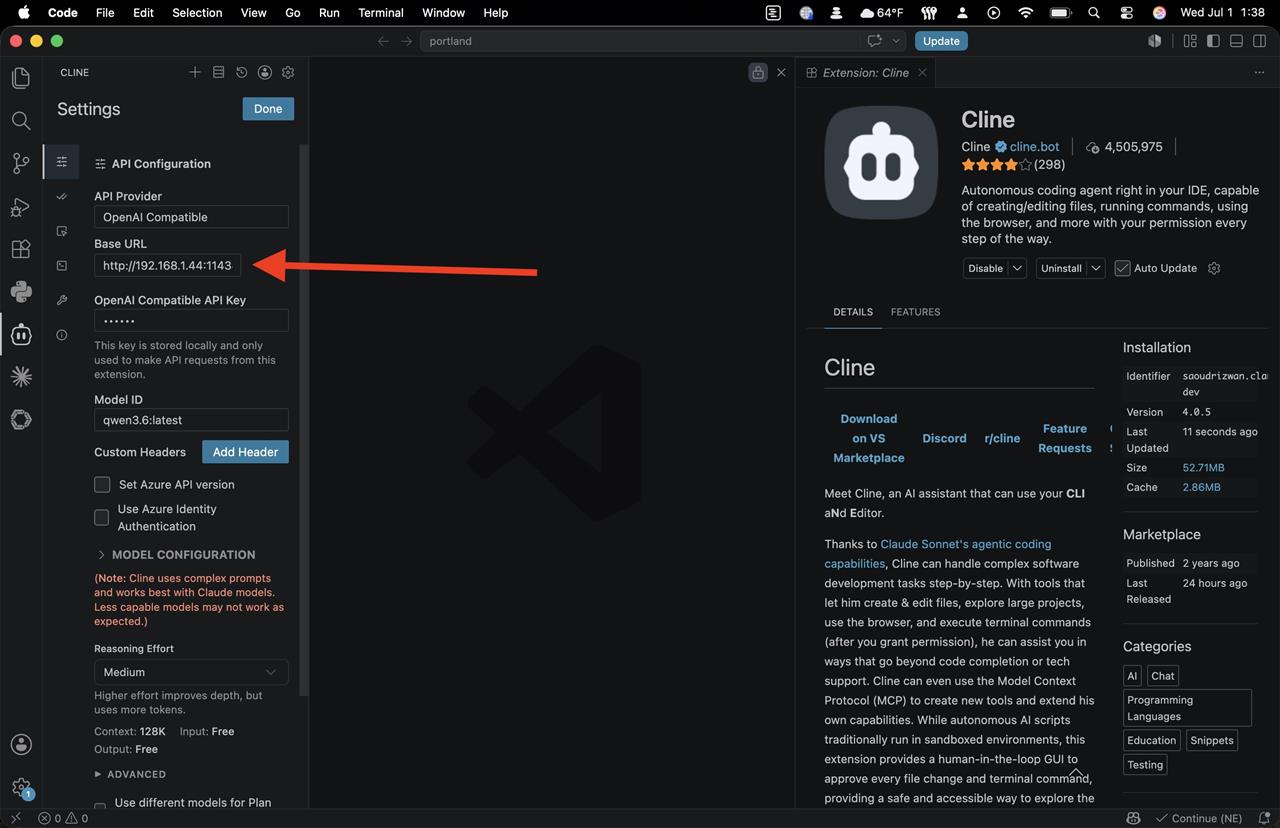
Photo: Matthew Smith
Once this is complete, the Cline plugin on your second computer will use the Ryzen AI Halo's hardware. Your prompts are passed to Ollama running on the Ryzen AI Halo via the OpenAI API, and responses are returned to your local device.
The important thing to understand is that an API such as the OpenAI-compatible API is not exclusive to any particular software. You could instead serve the endpoint with vLLM or LM Studio; you could instead access it with Open WebUI or Jan. As long as you know the local IP address of your Ryzen AI Halo, and the port on which the API is exposed, you can set up a wide variety of LLM clients to access the AI hosted on the Ryzen AI Halo.
What model should your server use?
Now that you know how to set up a server that can provide LLMs on the Ryzen AI Halo to other devices on your local network, you might wonder what model is best. I'm not going to go deep on performance here, but I have a few recommendations.
Qwen3.6-35B-A3B is a great option if you want a fast but capable model. This mixture-of-experts model will deliver up to 80 tokens per second on the Ryzen AI Halo, which is quite fast. It also supports thinking, vision, and tool-calling.
If you want something a bit more capable, try GPT-OSS-120B or GLM Air 4.5. These are large models, so you'll want to set the Ryzen AI Halo's discrete graphics memory to 96GB. If you do, you should see performance around 45 tokens per second for GPT-OSS-120B, or 25 for GLM Air 4.5.
Getting started with MCP
MCP servers are another common way to connect AI tools. MCP stands for Model Context Protocol, and an MCP server provides a standardized method for AI tools to access external (i.e., not AI) tools and data.
For a simple example of how this can work in practice, let's set up an MCP server that will give LLMs running on your Ryzen AI Halo the ability to accurately report the current time and date.
To do it, we're going to use LM Studio, a GUI LLM client that comes pre-installed. In fact, you should see the LM Studio shortcut on the Ryzen AI Halo's desktop.
Open LM Studio and complete any software updates that might be available. Once that's finished, find Models on the menu sidebar (it looks like a robot with a magnifying glass on its head). Download a model with tool-calling ability, such as Gemma 4 12B or Qwen3.6 35B A3B. Gemma 4 12B is very fast on the Ryzen AI Halo, but Qwen is more reliable.
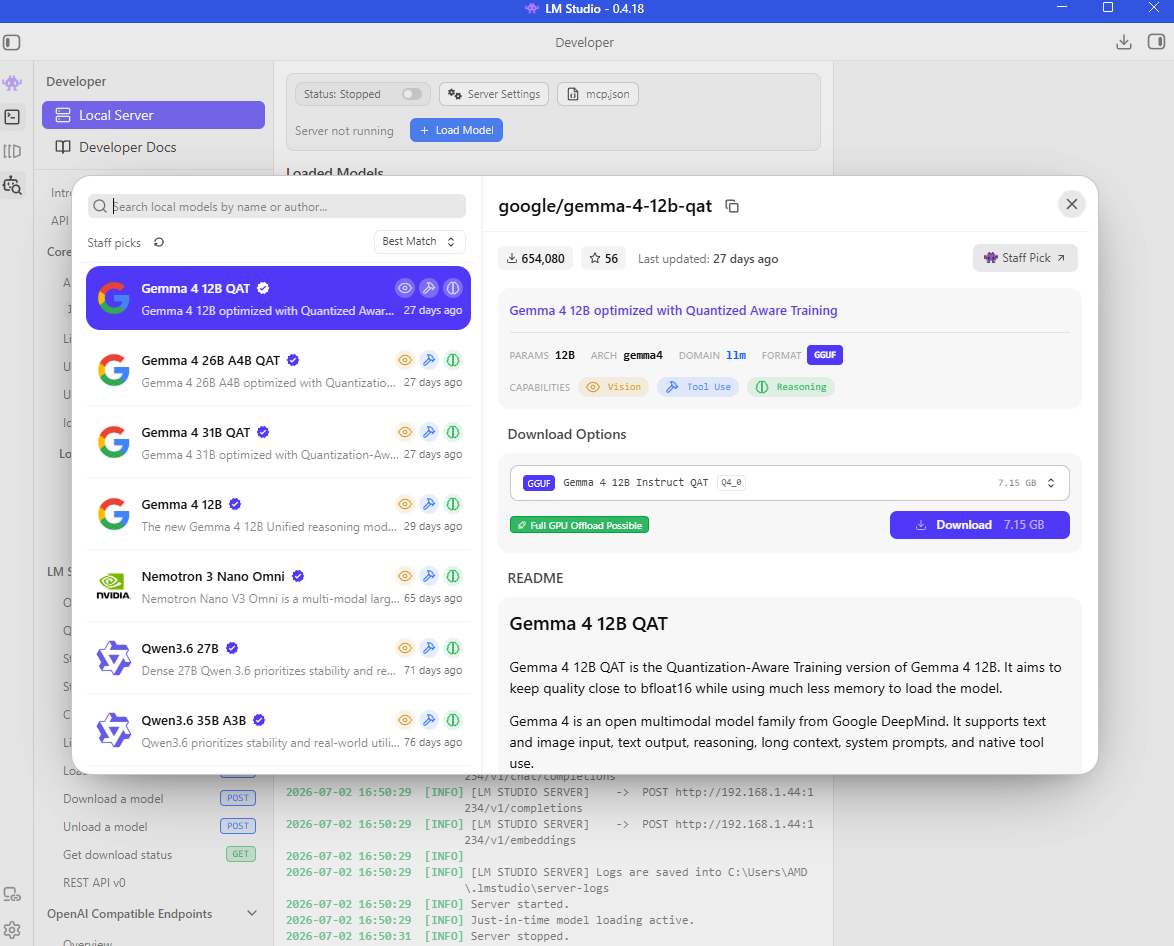
Photo: Matthew Smith
We also need an MCP server. It's a Python package, so you'll need a Python package manager installed (Python is actually pre-installed on Ryzen AI Halo, so we don't need to worry about that). We're going to use UV. To install it, open PowerShell and enter pip install uv. Once that is finished, install the Time MCP server with uvx mcp-server-time.
Now return to LM Studio and open the Developer menu in the sidebar (it looks like a terminal). Click the button labeled mcp.json. This will show you the .JSON file used to call MCP servers. Replace what's there with the following.
{
"mcpServers": {
"time": {
"command": "uvx",
"args": [
"mcp-server-time"
]
}
}
}
Next, click that Chat button in the LM Studio menu sidebar. Look at the Integrations on the right sidebar and make sure the mcp/time plugin's toggle is on. Now, ask the model what time it is.
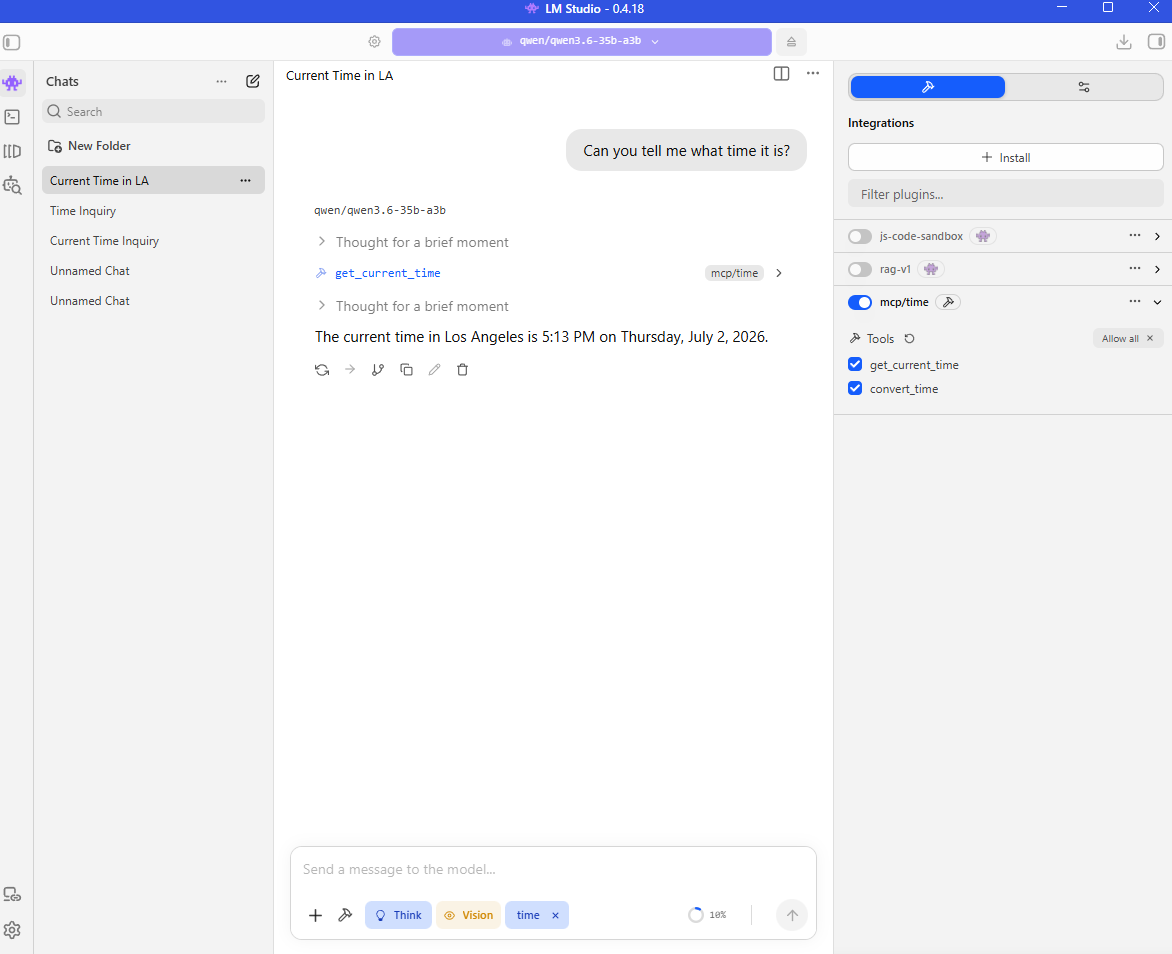
Photo: Matthew Smith
Great! You now have an MCP server running in LM Studio.
Many AI tools support MCP servers, and any of them can talk to the Time server that was installed (though you will need to also set it up in each app's settings, so the software knows that it exists).
Conclusion
You now have some basic information you'll need to get started with your Ryzen AI Halo. You can also refer to AMD's AI Playbook website for tutorials that will help you install specific software and tools. Many of these use either an API endpoint or an MCP server, so the fundamentals in this guide will help you navigate the installation and troubleshoot common problems.
If you'd like some advice on the most reliable way to use these concepts, I'd point you toward LM Studio, which is pre-installed. I've written about LM Studio in the past, and it's my go-to. LM Studio can set up a server for your LLMs and can communicate with MCP servers. It also has a proprietary connection, LM Link, which is a bit less flexible but very easy to use.
Whatever methods you choose, though, you'll find the AMD Ryzen AI Halo is an intuitive and speedy choice for hosting local LLMs. And, because it can run Windows, you can use it as your Windows daily driver, too.