
Hands-On: Seagate FireCuda Forge 8TB


Photo: Dan Ackerman
Hybrid storage is having something of a comeback, seeing large-capacity HDDs paired with smaller-but-faster SSDs. This mix, originally pioneered by Seagate back in 2010, is a best-of-both-worlds solution for making the most of your external storage, giving you excellent speed without spending a ton.
The Seagate FireCuda Forge 8TB (also coming soon in a 20TB tier) just launched at $699, less than half what a similar-size SSD would cost.
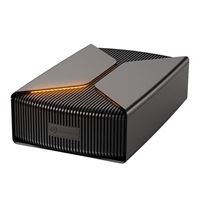
In it, you get 8TB of 3.5-inch hard drive space inside a ribbed desktop enclosure with programmable RGB lighting and a USB4 interface, rated for speeds up to 2,500MB/s read and 2,000MB/s write. To that, you supply and install your own M.2 2280 NVMe SSD, giving you faster access to the data you use most often.
Quick specs
- Capacity: 8TB 3.5-inch hard drive (20TB version also available)
- Interface: USB4 (USB-C cable)
- Rated speed: Up to 2,500MB/s read, 2,000MB/s write
- SSD slot: One M.2 2280 NVMe (SSD not included)
- Recommended SSD: 1TB PCIe Gen3 or faster, with DRAM
- Power: External wall power adapter (required)
- Compatibility: Windows 11, macOS 26 or newer
- Lighting: Programmable RGB
- Launch price: $699 (8TB)
Read more: SSD vs. HDD: Which Storage Is Right For You?
Cracking open the box to build your drive
Setting up the FireCuda Forge feels closer to a quick PC build than plugging in a typical external peripheral. Before powering it on, you have to flip the unit over, remove four bottom screws using a tiny included hex-bit driver, and lift off the outer shell. Underneath, you'll find a recessed M.2 2280 slot mounted along the side of the chassis. (If you ever want to upgrade the 3.5-inch hard drive inside down the line, removing six more hex screws lets you swap that out too.)

The M.2 2280 slot sits along the side of the chassis, under the outer shell. Photo: Dan Ackerman
Installing the NVMe stick is familiar to anyone who has upgraded a laptop or motherboard, though you will need your own small Phillips-head screwdriver for the M.2 retention screw. Seagate includes two thermal pads in the box to sandwich the SSD between the inner bay and the outer plastic shroud. While the edge of the enclosure gets noticeably warm under load, it holds up fine for bursty gaming and creative workloads.
Which SSD should you put in it?
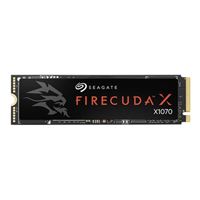
Seagate recommends a 1TB PCIe Gen3 (or faster) NVMe SSD with DRAM. You can drop in a faster PCIe 4.0 drive like the FireCuda 530R I used in testing, alongside qualified models like the Samsung 990 Pro, WD/SanDisk SN850X, and SN7100, though you won't get full Gen4 speeds. Drives smaller than 1TB also work, albeit with a smaller fast-access pool.
Real-world speeds and the value equation
In preliminary testing with a 2TB FireCuda 530R installed, I ran CrystalDiskMark to test the speed. Sequential read hit 1,712MB/s and write reached 1,520MB/s, which is much faster than standard external hard drives. Copying a 110GB file from my laptop's internal hard drive to the Seagate Forge took 4 minutes and 15 seconds. One a standard HDD without the hybrid SSD, that would likely take 15 minutes or more.
How Alkemi handles the heavy lifting
Once the shell is sealed back up and connected via both the USB-C cable and the required external wall power brick, the setup friction vanishes. Plugging the Forge into a Windows 11 PC or a Mac running macOS 26 (or newer) brings up a single, unified 8TB volume. There are no companion apps to configure, no separate drive letters to juggle, and no manual file shuffling.
Everything is orchestrated on-device by Alkemi, Seagate's dynamic caching and workload-aware data-prioritization architecture. Unlike basic NAS SSD caching, Alkemi uses onboard processing and machine learning to continuously observe your habits. Active game installs, current video timelines, and frequently accessed files are automatically promoted to the NVMe, while cold archives stay on the spinning platters.
If you're not sure if hybrid storage is right for you, or if you're trying to decide between the 8TB and 20TB versions of the FireCuda Forge, drop by your local Micro Center, where our expert associates will help you find the right storage solution.